Finance and reports8 min read
Folios, payments and split billing
Take payments by cash, card, bank transfer or bKash, send payment links, split a bill between company and guest, and issue invoices.
Written for front deskWhat a folio is
A folio is the guest's running bill: charges, payments and the balance. Every booking gets a primary folio. Room charges come from the booked prices and stay in step with the booking: change the dates and the folio follows.
You can find every folio under Finance > Folios, every payment under Finance > Payments and every invoice under Finance > Invoices.
Take a payment
- Open the booking and go to its folio.
- Choose Take payment.
- Pick the method: cash, card, bank transfer or bKash, and enter the amount.
- Save. The payment gets a receipt number and the current business date.
Card payments can add a card surcharge if your property sets one under Setup > Settings > Payments.
Send a payment link
If your property has an online gateway set up, choose to send a payment link from the folio. The guest pays through Stripe, SSLCommerz or bKash, depending on what you offer. When more than one gateway is available, the guest chooses. A payment is only marked paid after the gateway confirms it.
Add extras
Use Add charge for things like laundry, a late check-out fee or airport pick-up. The property's taxes for extras apply automatically.
Split a bill
- On the booking, open a second folio.
- Move the room charges to it, for example for the company paying the room.
- Keep extras on the guest's folio.
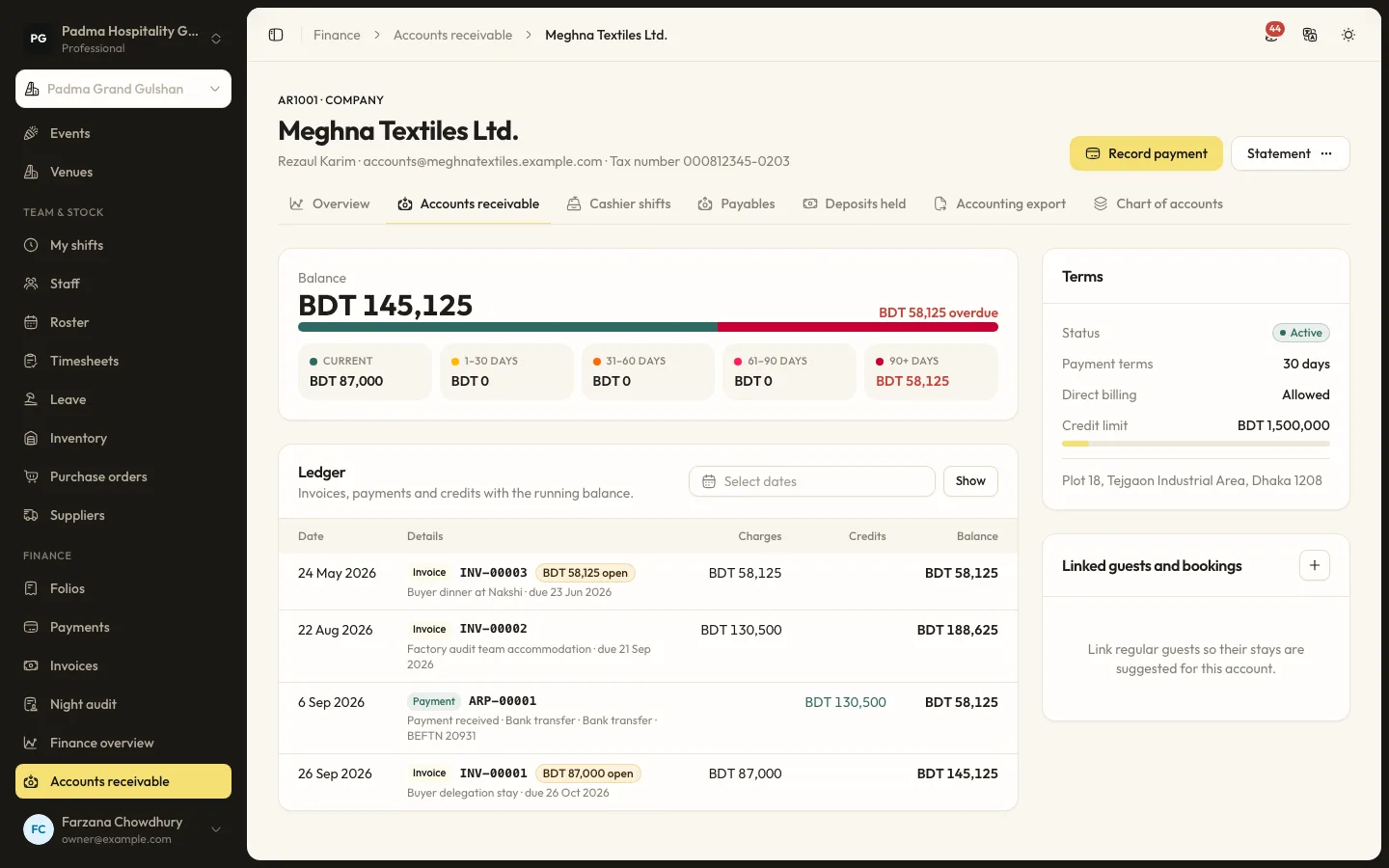
Company folios can then be moved to a company account in Finance > Accounts receivable and billed on account.
Refunds
Refund from the original payment. The refund is recorded as a negative payment linked to it, so the trail is clear.
Invoices
- From the folio, create an invoice.
- The invoice is a numbered snapshot with seller and bill-to details, lines, the tax breakdown and payments.
- Print, download as PDF or email it.
When your organisation has a tax number and tax applies, it is shown as a tax invoice.
Tips
- Set invoice and receipt number prefixes under Setup > Settings > Invoices & receipts before you issue the first one.
- Put your bank details in the payments settings if you accept bank transfer. They print on invoices.
Common mistakes
- Recording a bKash payment as cash. Payments by method on the night audit then will not match your bKash statement.
- Editing a charge after the night audit. Items closed by the audit are locked. Post an adjustment instead.
- Marking a payment link paid because the guest says so. Wait for the gateway to confirm.
Still stuck?
Tell us which step you are on and what you see on screen. We will walk you through it.
Contact supportRelated guides
All guides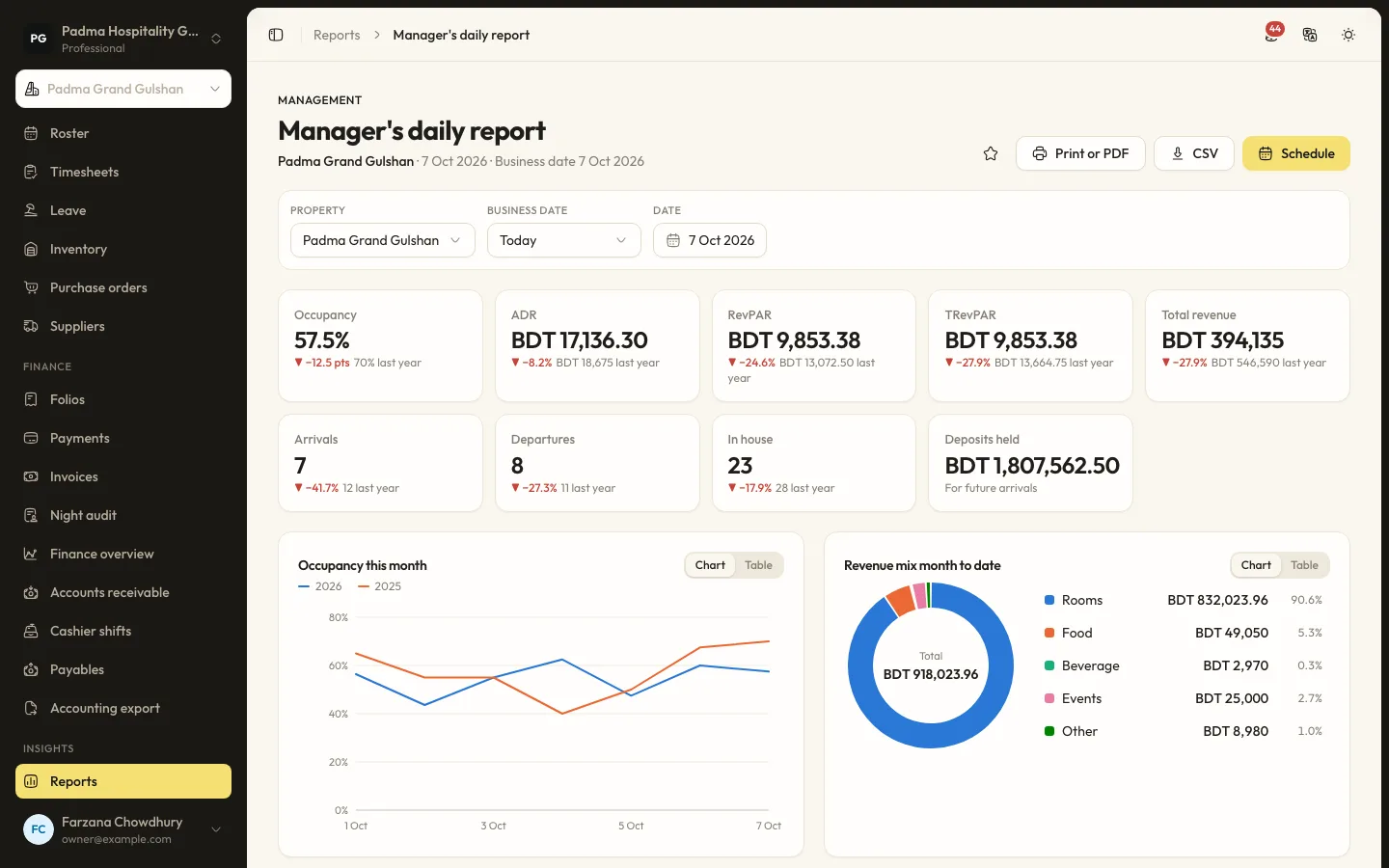
Finance and reports6 min read
Running the night audit
Close the business day, post the night's charges, handle no-shows and keep the daily figures your reports rely on.
Finance and reports6 min read
Reports and scheduled emails
Find the right report, filter and export it, and have it emailed to you every morning.
Finance and reports8 min read
Company accounts and cashier shifts
Bill companies and travel agents on account with ageing, and balance each cashier's drawer at the end of a shift.
See it working with your own rooms.
A 30 minute call with someone who has run a front desk. Bring your questions and your room list.