Front office6 min read
Taking a booking
Search availability, price every plan for the stay, add one or more rooms and confirm the booking for a new or returning guest.
Written for front deskBefore you start
The booking screen uses the same pricing as the booking website, so the price you quote on the phone is the price the guest would see online, with the same seasons, restrictions, promotions and taxes.
Take a booking
- Open Front office > Reservations and choose New booking.
- Pick the stay dates in the range picker. There are shortcuts for today, tomorrow and this weekend.
- Enter adults, children and a promo code if the guest has one.
- Search. Every room type is listed with every plan priced for the stay and how many rooms are left.
- Add a room. For a family or group, add more rooms; each one can have its own type, plan and guests.
- Pick an existing guest or create a new one. If the email or phone matches someone already on file, use that profile.
- Add the source (phone, walk-in, email, corporate and so on), arrival time and any requests.
- Confirm booking.
The booking gets a reference with your property's prefix, and the guest folio is created with the room charges.
From the room chart
Front office > Room chart shows every room across the coming days with bookings as bars. Click an empty day on a room to start a booking for it. Switch between 7 days, 14 days and a month.
When a plan is restricted
A plan can be closed to arrival, need a minimum stay or need booking in advance. The search shows the reason, for example "Book at least 7 days ahead". Staff with the override permission can choose Add anyway and set nightly prices by hand, but no one can go beyond the room type occupancy or availability plus your overbooking allowance.
Tips
- Use the price check when a guest only wants a quote. It prices any stay with every plan, season, promotion and tax applied.
- For a company paying the room and a guest paying extras, take the booking normally and open a second folio afterwards (see the folios guide).
- Front desk stays can be up to 90 nights. Online bookings are limited to 30.
Common mistakes
- Creating a duplicate guest. Search first. If duplicates do slip in, they can be merged from the guest profile and bookings follow the surviving profile.
- Leaving the source empty. Revenue by segment reports depend on it.
- Overriding prices out of habit. Set the right rate plan instead, so reports and the night audit stay consistent.
Still stuck?
Tell us which step you are on and what you see on screen. We will walk you through it.
Contact supportRelated guides
All guides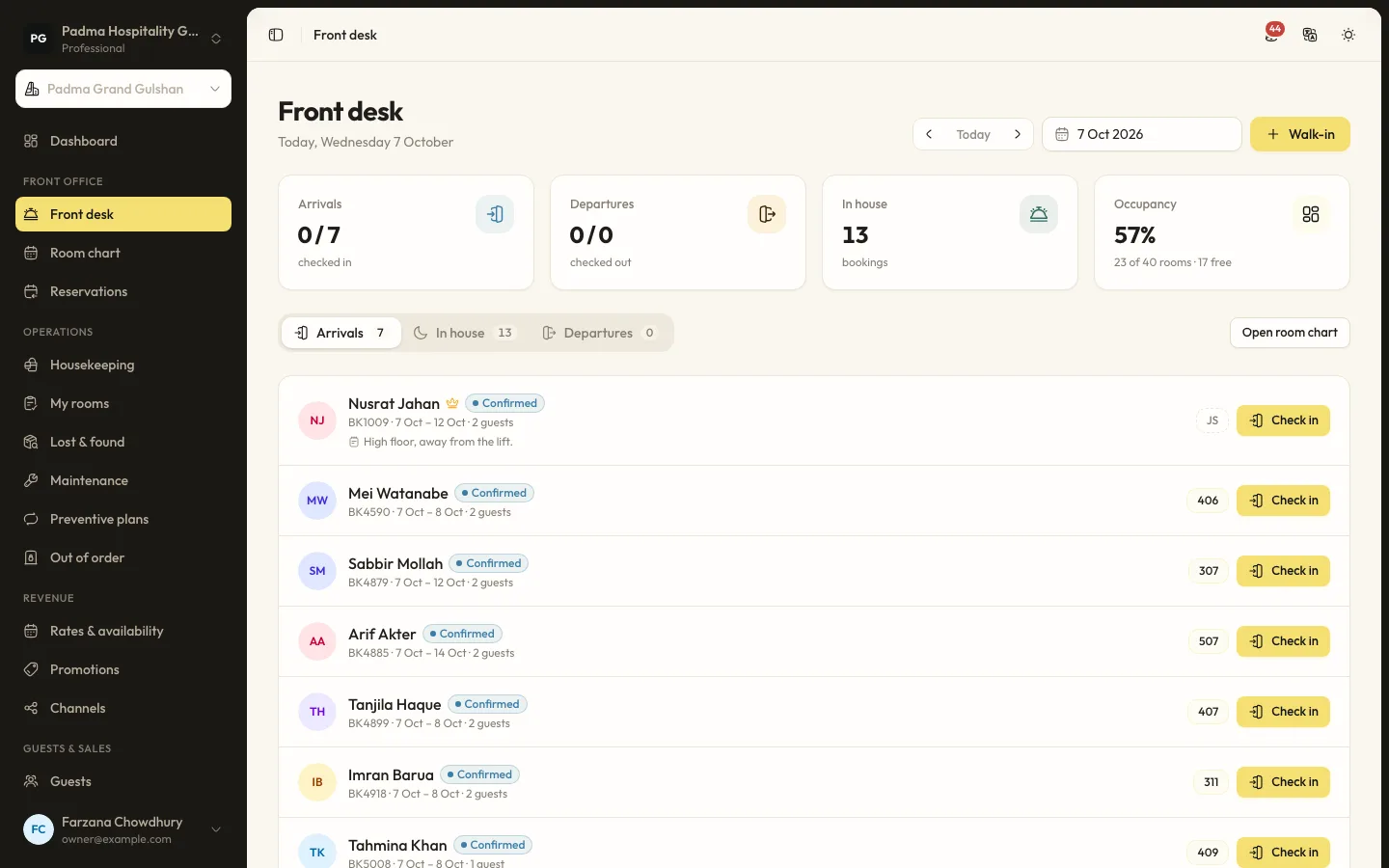
Front office6 min read
Checking guests in and out
Work today's arrivals and departures from the front desk screen, assign ready rooms, record ID and settle the bill.
Guests and marketing7 min read
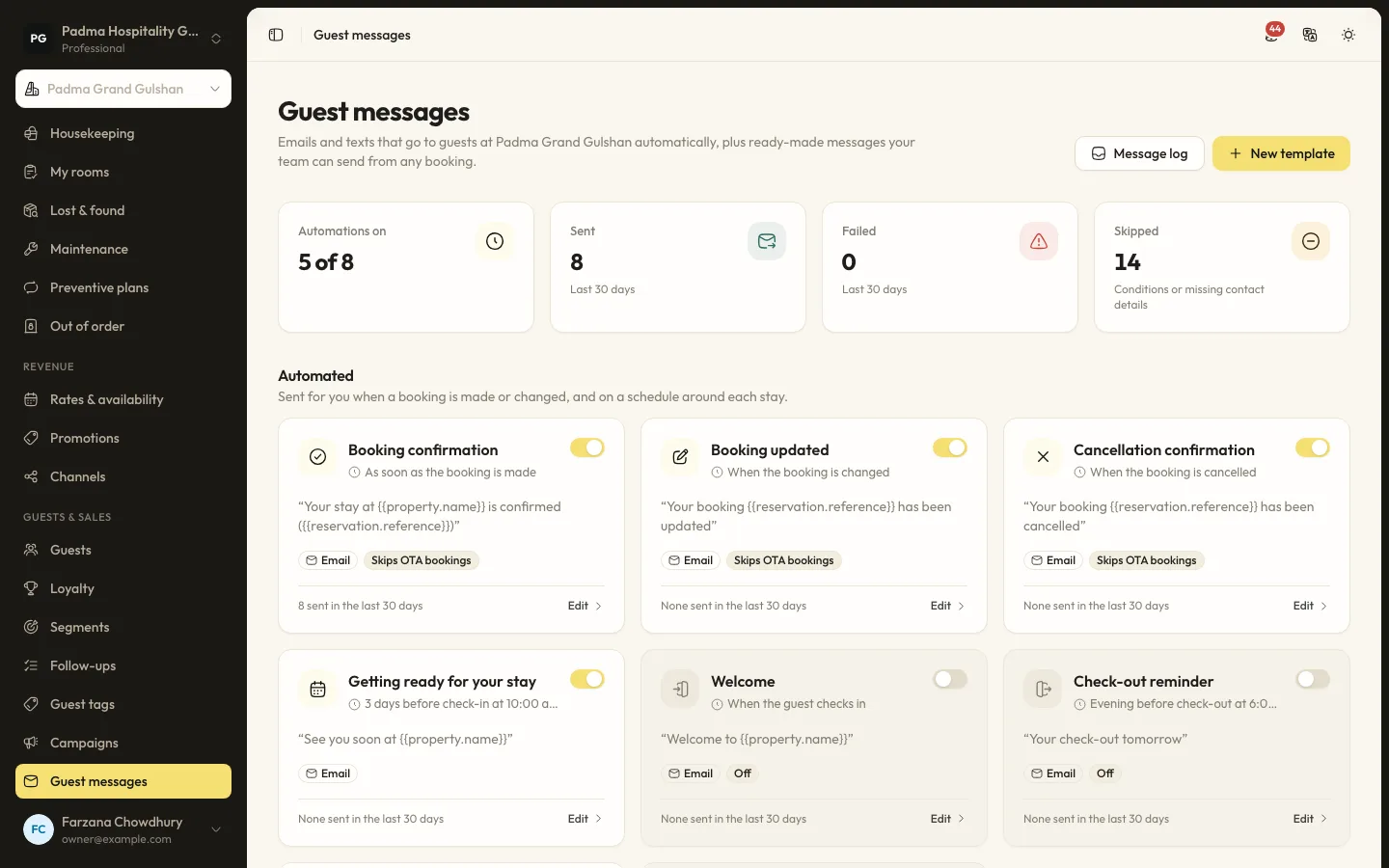
Automated guest messages and SMS
Send confirmations, pre-arrival notes, welcome and post-stay messages by email or SMS, with merge tags, conditions and a full log.
Guests and marketing8 min read
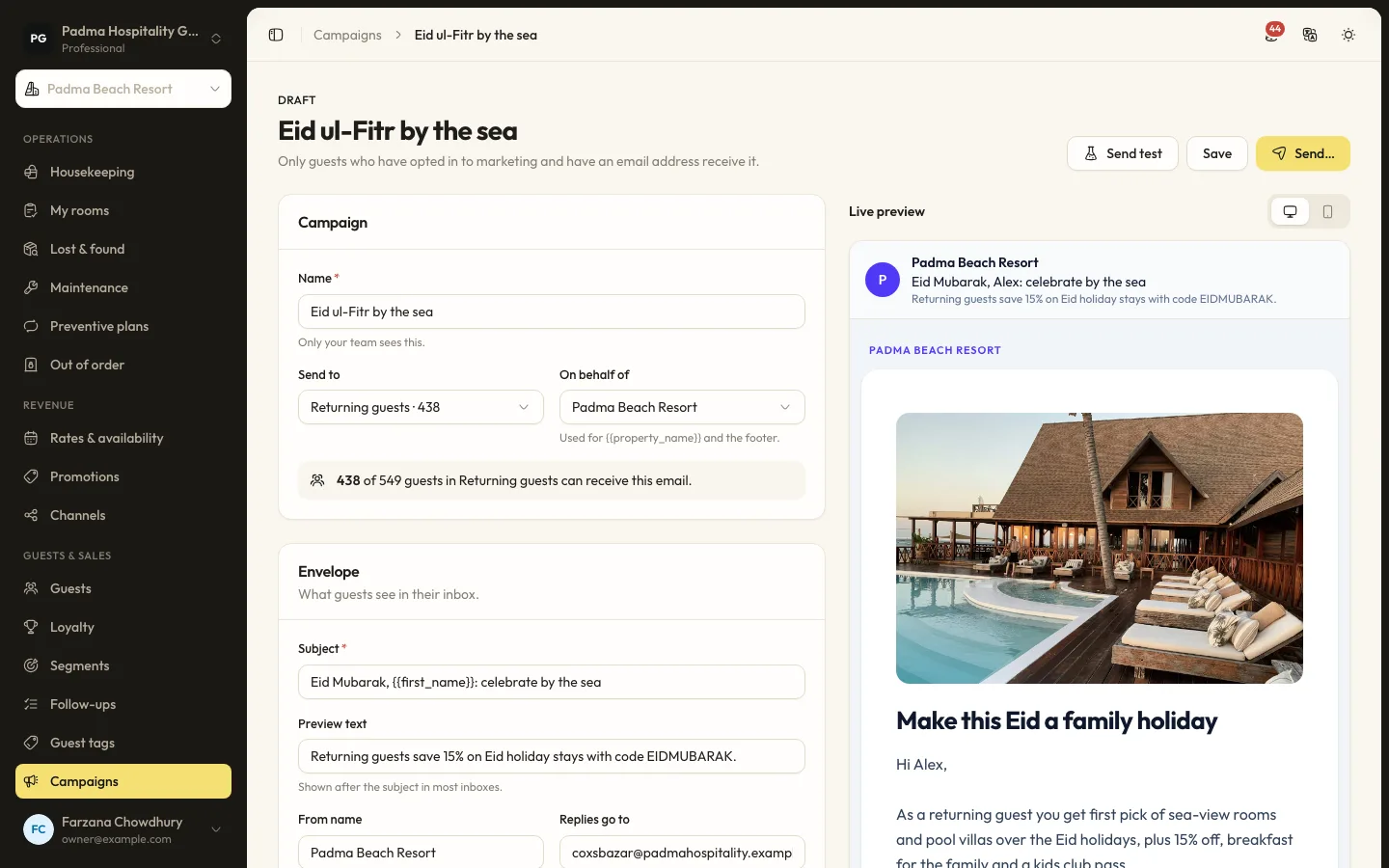
Guest segments and email campaigns
Group guests by stays, spend, tags and more, then send a tracked email campaign to those who opted in.
See it working with your own rooms.
A 30 minute call with someone who has run a front desk. Bring your questions and your room list.