Getting started7 min read
Setting up rooms and room types
Describe what you sell with room types, add the physical rooms, and keep the count inside your plan.
Written for managerRoom types and rooms are different things
- A room type is what you sell: occupancy, beds, size, view, amenities, photos and a default rate. "Deluxe King" or "Sea View Twin" are room types.
- A room is the physical unit with a number or name, its own availability and housekeeping status. Room 301 is a room.
Guests book a room type. The front desk assigns a room. The booking website and the rate calendar count availability from the rooms you add under each type, and so will the channel manager when it launches.
The wording follows your property type: serviced apartments see Apartments & types, vacation rentals and villas see Homes, hostels see Beds and campgrounds see Sites.
Add a room type
- Open Setup > Rooms & units.
- Add a room type with its name, maximum adults and children, beds and size.
- Choose amenities and upload photos. The first photo is the one guests see first on the booking website.
- Set the default rate. Rate plans without their own price for this type fall back to it.
- Save.
Add rooms
- On the same page, add rooms to the room type.
- Add them one by one, or in bulk with a range such as "101 to 110" or "Villa 1 to 4".
- Give rooms names if you use them, such as Keora or Shapla.
The page shows how many rooms you have against your plan, for example "100 of 250 rooms on your plan". Starter allows 20 rooms and units, Professional 250 and Enterprise has no limit. Adding more than your plan allows is refused with a message.
Taking a room out of use
Do not delete a room that is being repaired. Use Operations > Out of order instead:
- Out of order removes the room from inventory for the dates you choose, so one less room is sold.
- Out of service keeps the room sellable but it cannot be assigned.
A block is refused if the room is already assigned to a booking on those dates.
Tips
- Keep room type names short and guest friendly. They appear on the booking website, confirmation emails and invoices.
- Group rooms that are the same to the guest under one type, even if they sit on different floors. Use room names or notes for small differences.
- Branches inherit settings from their main property, which saves time for a second building under the same management.
Common mistakes
- One room type per room. It makes rates and channels hard to manage and confuses guests.
- Wrong maximum occupancy. Bookings above the room type occupancy are refused, even with an override, so set it to what the room really sleeps.
- Deleting instead of blocking. Deleted rooms lose their history. Block them instead.
Still stuck?
Tell us which step you are on and what you see on screen. We will walk you through it.
Contact supportRelated guides
All guides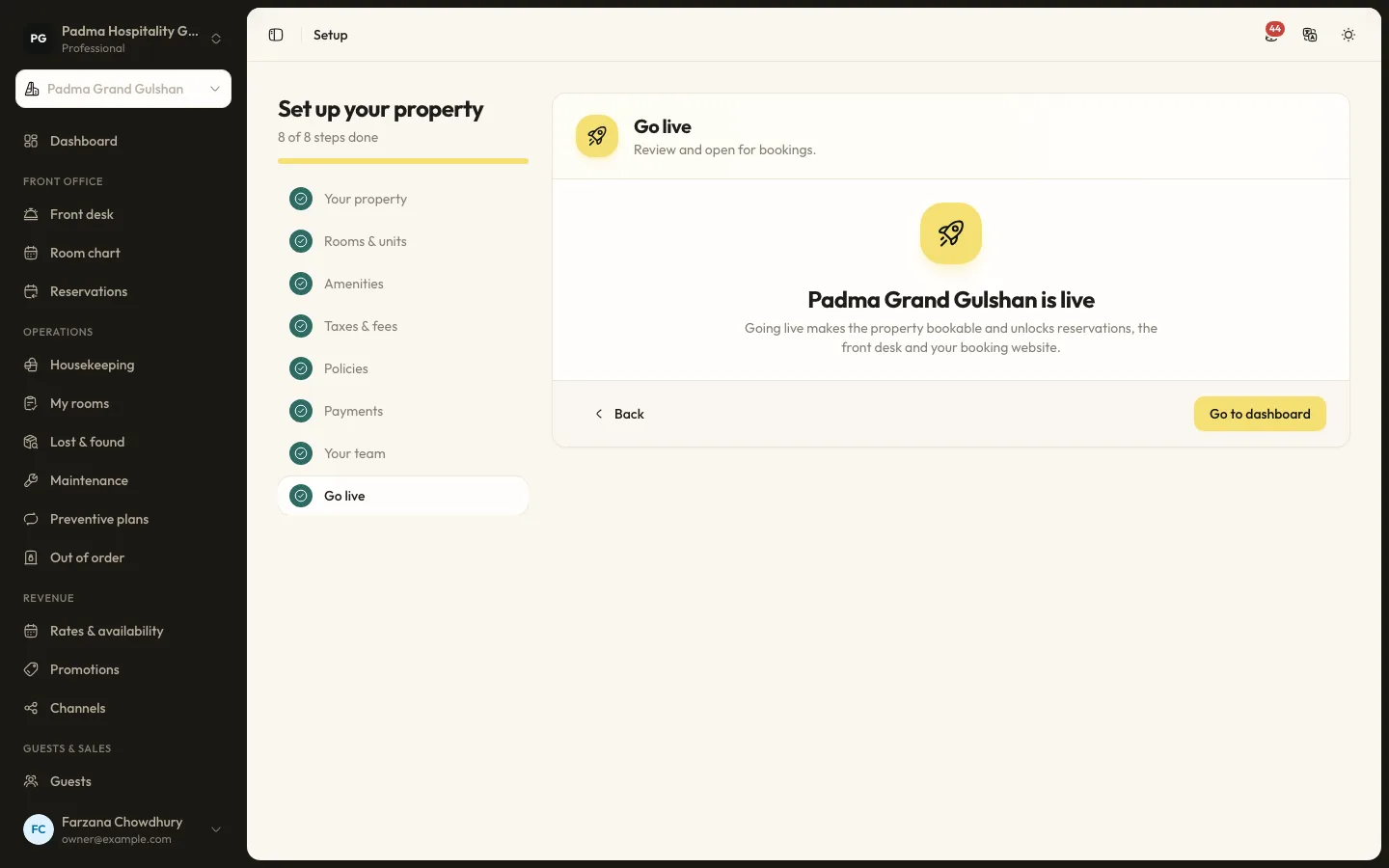
Getting started12 min read
Getting started in your first day
Go from a new account to a property that can take its first booking: the onboarding wizard, rooms, rates, team and a test booking, in one working day.
Guests and marketing7 min read
Automated guest messages and SMS
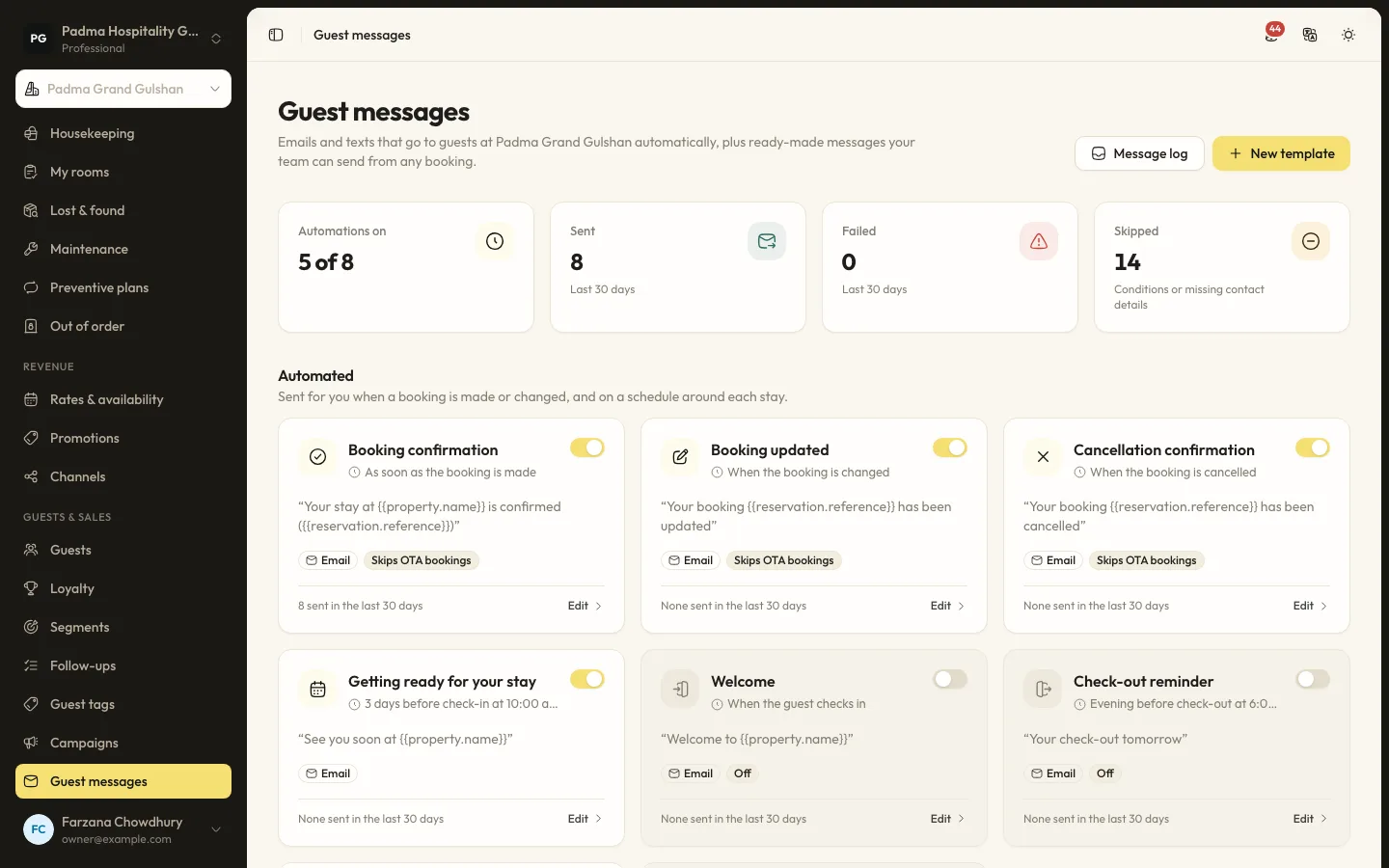
Send confirmations, pre-arrival notes, welcome and post-stay messages by email or SMS, with merge tags, conditions and a full log.
Guests and marketing8 min read
Guest segments and email campaigns
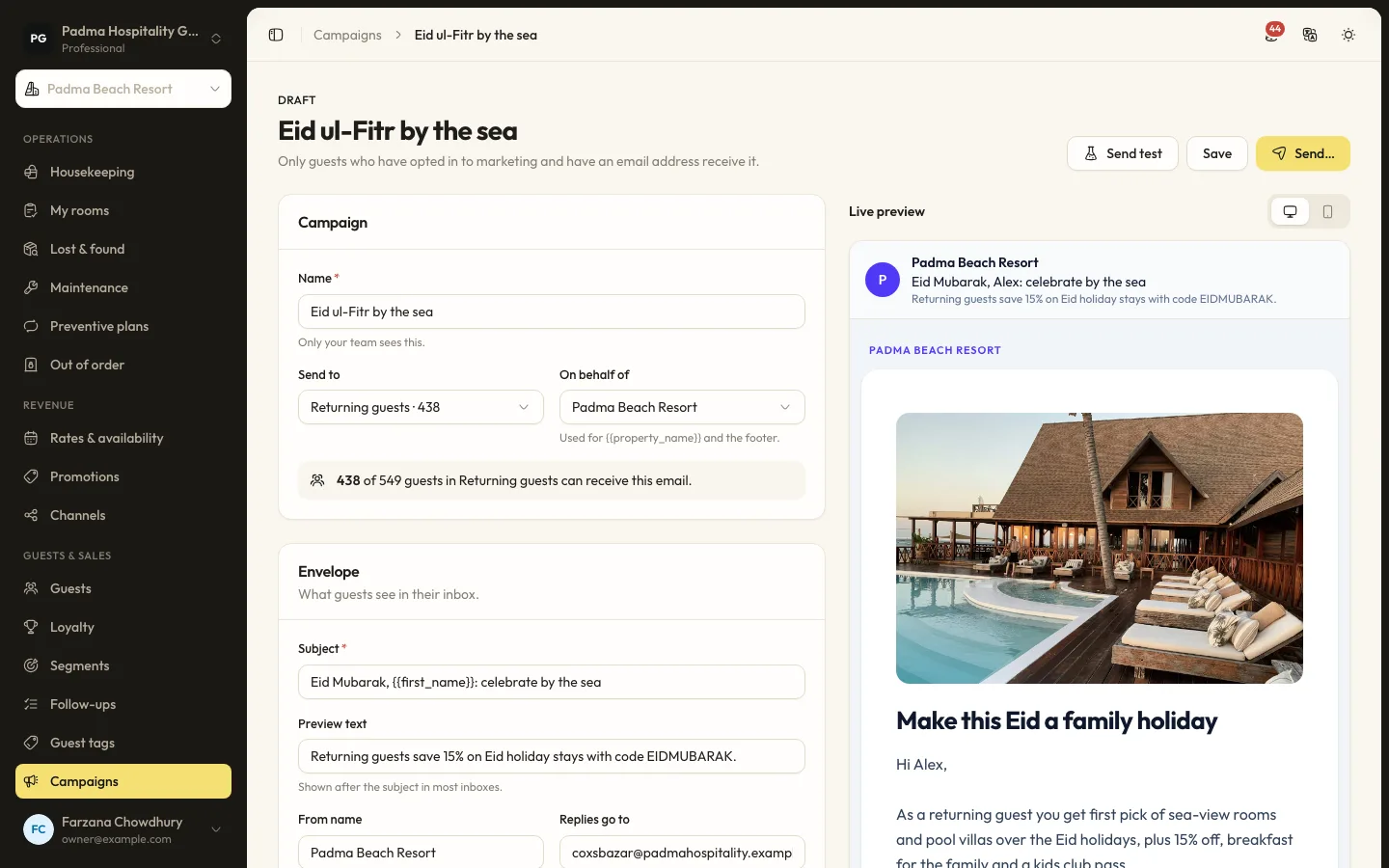
Group guests by stays, spend, tags and more, then send a tracked email campaign to those who opted in.
See it working with your own rooms.
A 30 minute call with someone who has run a front desk. Bring your questions and your room list.