Administration9 min read
Setting up online payments
Take deposits and payment links through Stripe, SSLCommerz or bKash: what the platform must allow, where credentials go and how test mode works.
Written for ownerWhat you can offer guests
RoomAnchor supports these online gateways for guest payments:
| Gateway | Currency | Notes |
|---|---|---|
| SSLCommerz | BDT only | Cards, mobile banking and internet banking through the SSLCommerz page |
| bKash (tokenised checkout) | BDT only | The guest pays in the bKash flow |
| Stripe Checkout | Many currencies | Card payments |
SSLCommerz and bKash refuse any other property currency with a clear message. Bank transfer and payments taken at the desk (cash, card on your own terminal, bKash to your merchant number) are recorded on the folio as usual.
Online payments are used for deposits on the booking website, for guests paying what they owe from their booking portal, and for payment links sent from a folio.
Step 1: ask for the gateway to be allowed
Gateways are switched on per organisation by the RoomAnchor platform team. By default only Stripe and manual payments are allowed. To use SSLCommerz or bKash, contact support and say which you want and whether you will use:
- your own merchant credentials, which most hotels will, or
- the platform's account, where that is offered.
Step 2: enter your credentials
- Open Setup > Settings > Online payments.
- Each gateway the platform allows is listed. Enter your credentials:
- SSLCommerz: store ID and store password
- bKash: username, password, app key and app secret
- Stripe: your keys and webhook signing secret
- Use Test connection where it is shown. bKash limits how often tokens can be granted, so use it sparingly.
- Turn on Offer to guests for each gateway you want guests to see.
- Save.
Credentials can be entered for the organisation or for a single property. A property's own credentials take priority. Secrets are stored encrypted and are not shown again.
Stripe needs the webhook URL shown on this page entered in your Stripe dashboard. SSLCommerz sends its payment notification automatically and bKash payments are confirmed with bKash directly, so there is nothing more to configure for those.
Step 3: ask for a deposit at booking
A deposit is requested through your gateway when the rate plan's policy asks for payment at booking, or all of it for non-refundable rates. Without a gateway, the guest pays at the property.
Test mode
While your organisation is in test mode, the only online payment method is a test gateway that marks payments paid at once. Staff and guests see that no money is taken. Ask the platform team to turn test mode off before your first real booking.
Tips
- Take one small real payment through each gateway after test mode is off, then refund it from the folio.
- A payment is only marked paid after the gateway confirms it, never from the guest's browser returning alone.
Common mistakes
- Property currency not set to BDT. SSLCommerz and bKash will refuse to start a payment.
- Credentials saved but Offer to guests left off. The gateway will not appear at checkout.
- Going live while test mode is still on. Guests see a test mode notice and no money reaches you.
Still stuck?
Tell us which step you are on and what you see on screen. We will walk you through it.
Contact supportRelated guides
All guides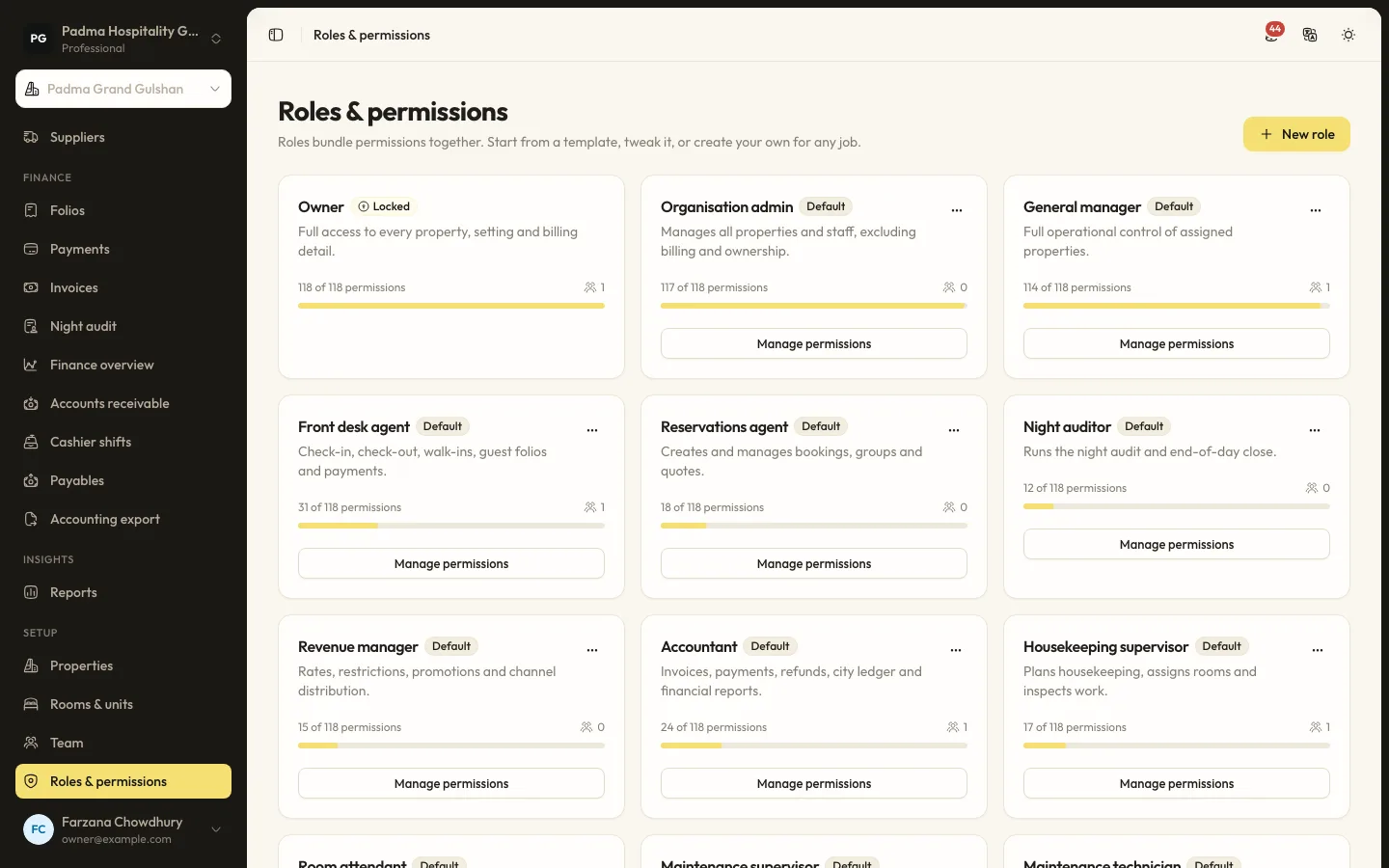
Administration6 min read
Inviting your team and setting roles
Invite staff, choose role templates, limit people to the properties they work at and check the audit log.
Finance and reports8 min read
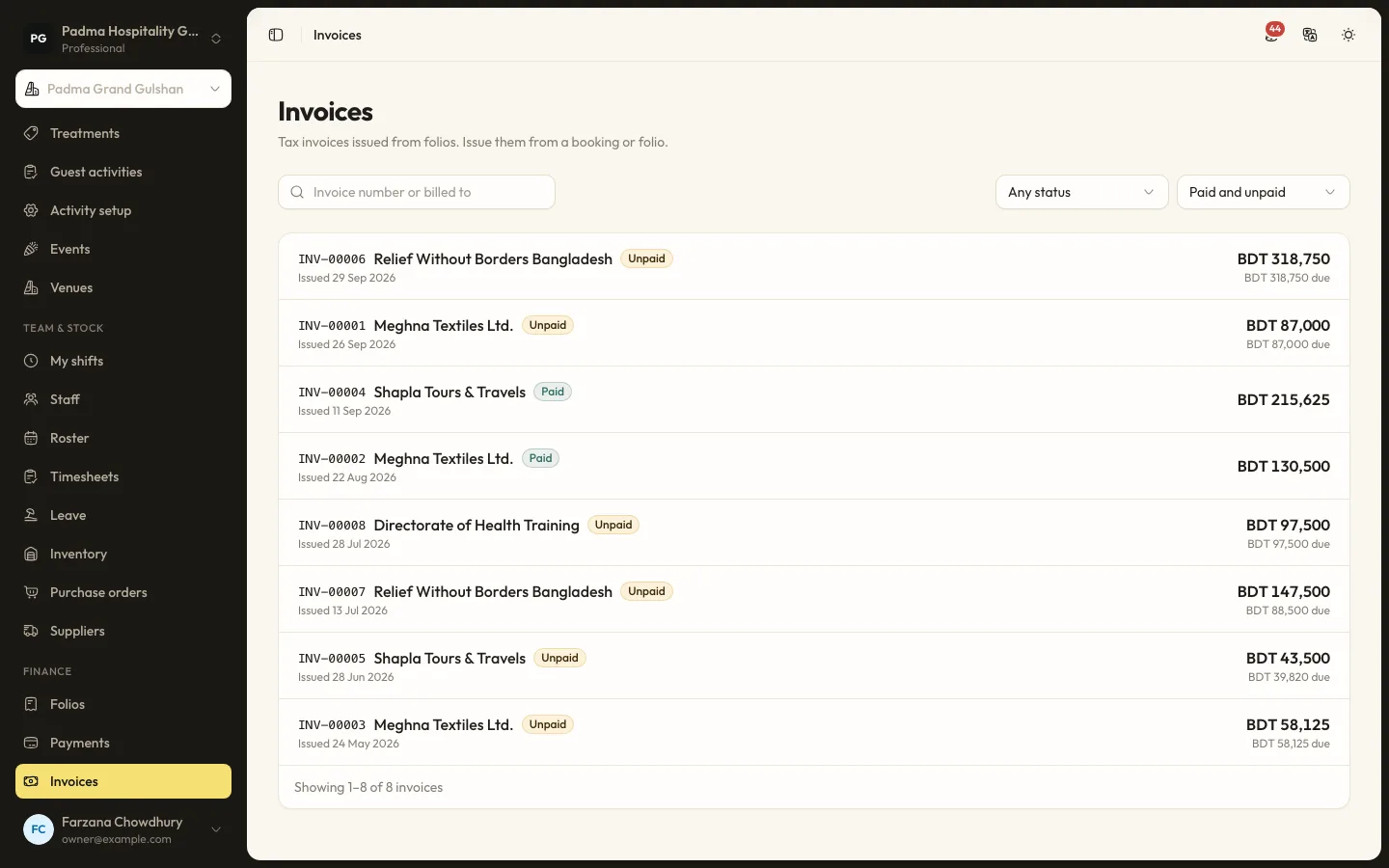
Folios, payments and split billing
Take payments by cash, card, bank transfer or bKash, send payment links, split a bill between company and guest, and issue invoices.
Finance and reports6 min read
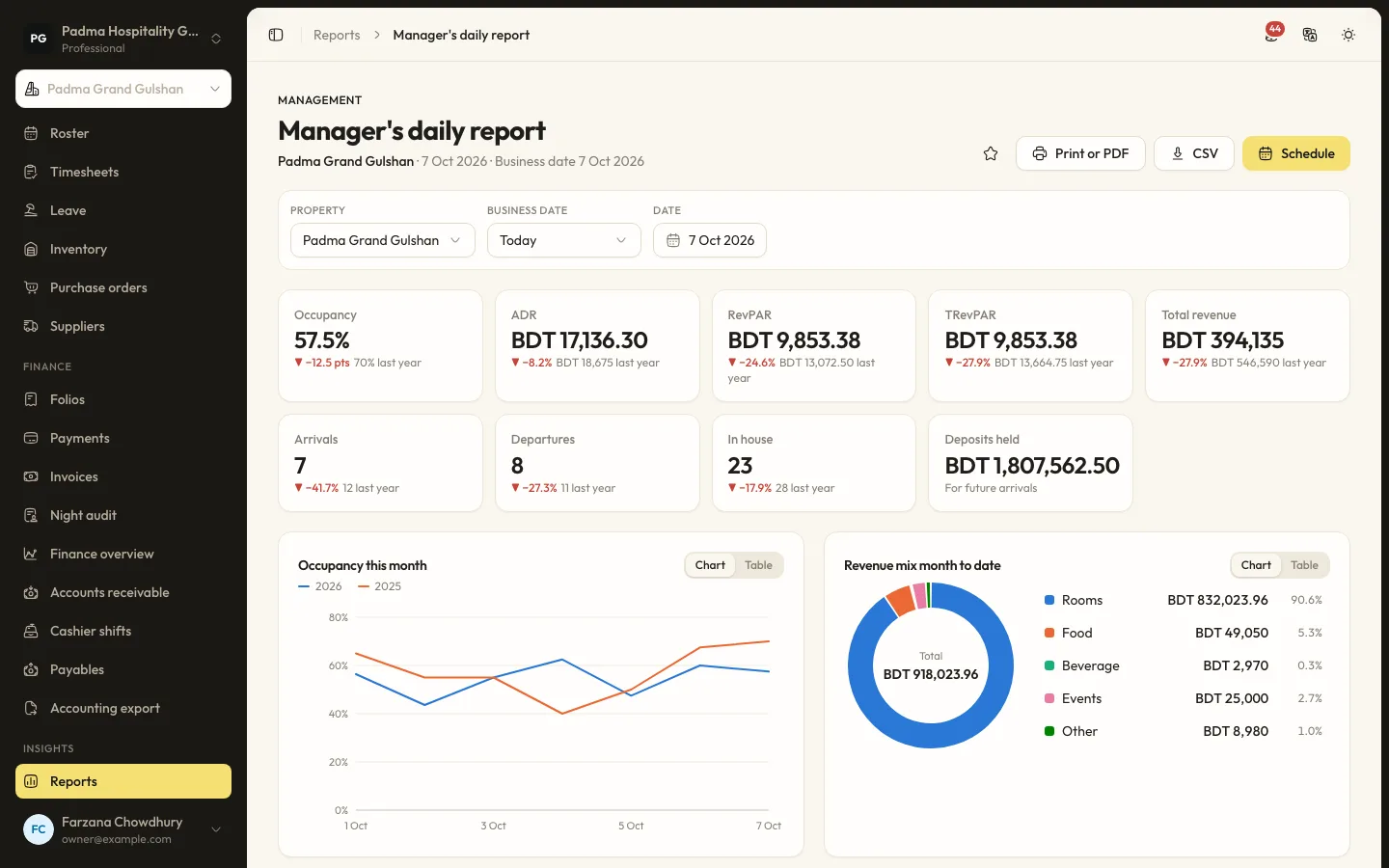
Running the night audit
Close the business day, post the night's charges, handle no-shows and keep the daily figures your reports rely on.
See it working with your own rooms.
A 30 minute call with someone who has run a front desk. Bring your questions and your room list.