Revenue10 min read
Rate plans, seasons and promotions
Build a base rate, linked plans for breakfast and non-refundable stays, seasons for peaks and promotions with or without a code.
Written for managerThe building blocks
- Rate plans are the ways you sell a room type: their own prices or linked to a parent, a meal plan, cancellation and deposit policies, public or private visibility, minimum stay and advance booking rules.
- Seasons adjust every root plan on matching dates and weekdays. The highest priority season wins, and a season can set a minimum stay.
- Promotions discount a stay automatically, or when the guest enters a code.
One pricing engine answers every price question: the rate calendar, the front desk, the booking website and the API all get the same answer.
Set up a base rate and linked plans
- Open Revenue > Rates & availability and go to rate plans.
- Check the standard plan that was created when the property went live. Set its price per room type, or leave a type to fall back to the room type's default rate.
- Add a "Bed and breakfast" plan linked to the standard plan with a fixed adjustment, for example plus BDT 1,800, and the meal plan set to breakfast.
- Add a "Non-refundable saver" linked at minus 12 percent with a non-refundable cancellation policy and, if you want, "book at least 7 days ahead".
- Add a private "Corporate" plan for company bookings. Private plans are not offered on the booking website.
Linked plans follow the parent's prices and closures, up to three levels deep. Change the base and everything linked moves with it.
Add seasons
- Open seasons from Revenue > Rates & availability.
- Add a season with its date range, for example Eid or Durga Puja, or a winter peak.
- Choose the weekdays it applies to. A weekend rule might apply only to Thursday and Friday nights.
- Set the adjustment and, if needed, a minimum stay.
- Give it a priority. Where seasons overlap, the highest priority wins.
Calculated prices are rounded by the "Round calculated prices" setting under Setup > Settings > Rates & pricing.
Add a promotion
- Open Revenue > Promotions.
- Leave the code empty for an automatic offer, or add a code such as one for Pohela Boishakh.
- Set conditions: stay dates, booking dates, weekdays, minimum nights, lead time, rate plans, room types and a usage limit.
- Save. When several promotions apply, the best eligible discount wins.
Tips
- Keep few plans. Three or four well-understood plans sell better than twelve that differ by small amounts.
- Use the price check to test a season before a busy weekend: quote the stay and see every adjustment applied.
Common mistakes
- Giving every plan its own prices. Use linked plans so one change updates them all.
- Overlapping seasons with the same priority. Decide which wins.
- Forgetting the booking window. Guests can only book as far ahead as "Booking window (days)" allows, 365 by default.
Still stuck?
Tell us which step you are on and what you see on screen. We will walk you through it.
Contact supportRelated guides
All guides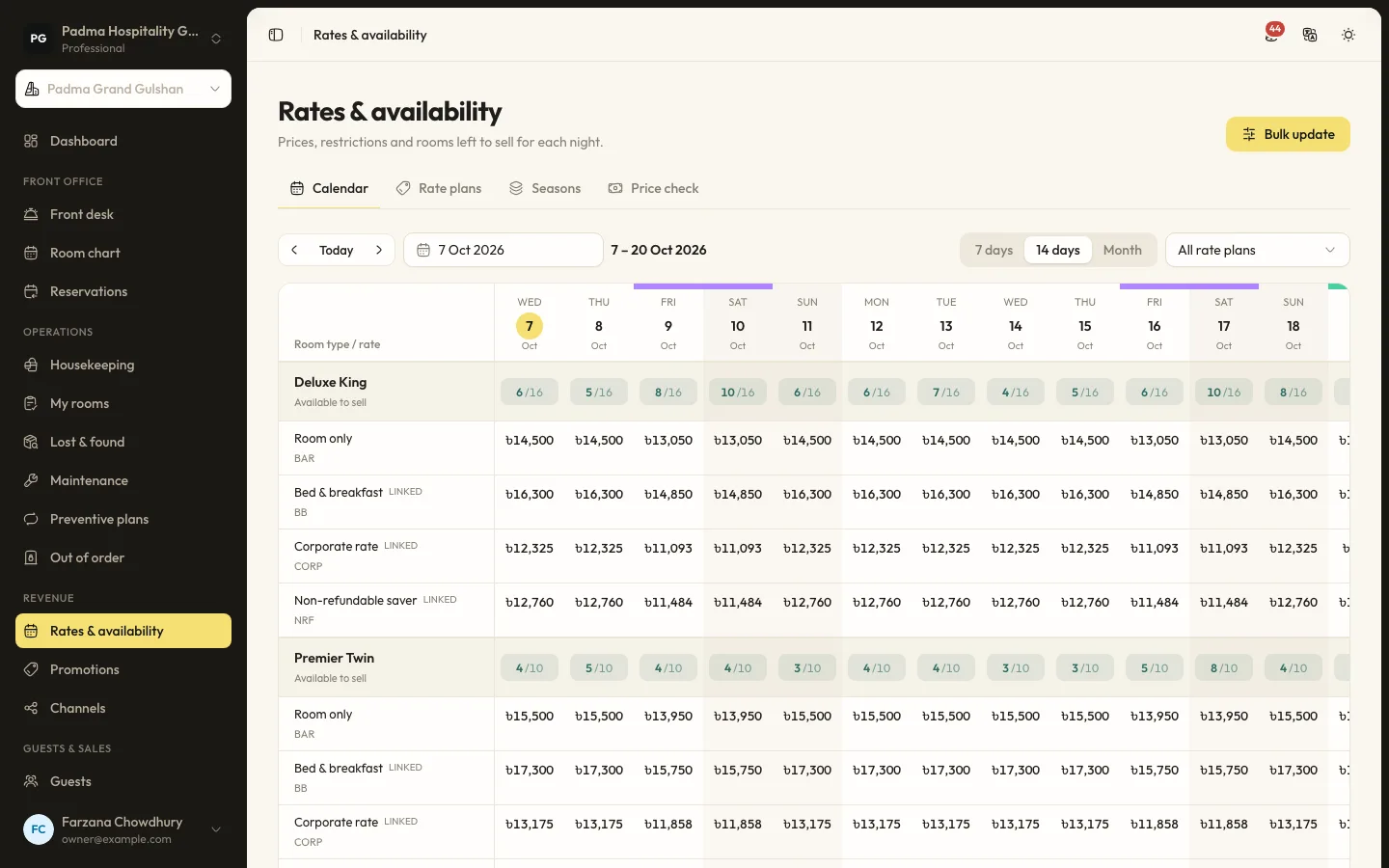
Revenue7 min read
Using the rate calendar and restrictions
Change prices for a date, set minimum stays, close to arrival or departure, stop sell and hold rooms back, one day at a time or in bulk.
Guests and marketing7 min read
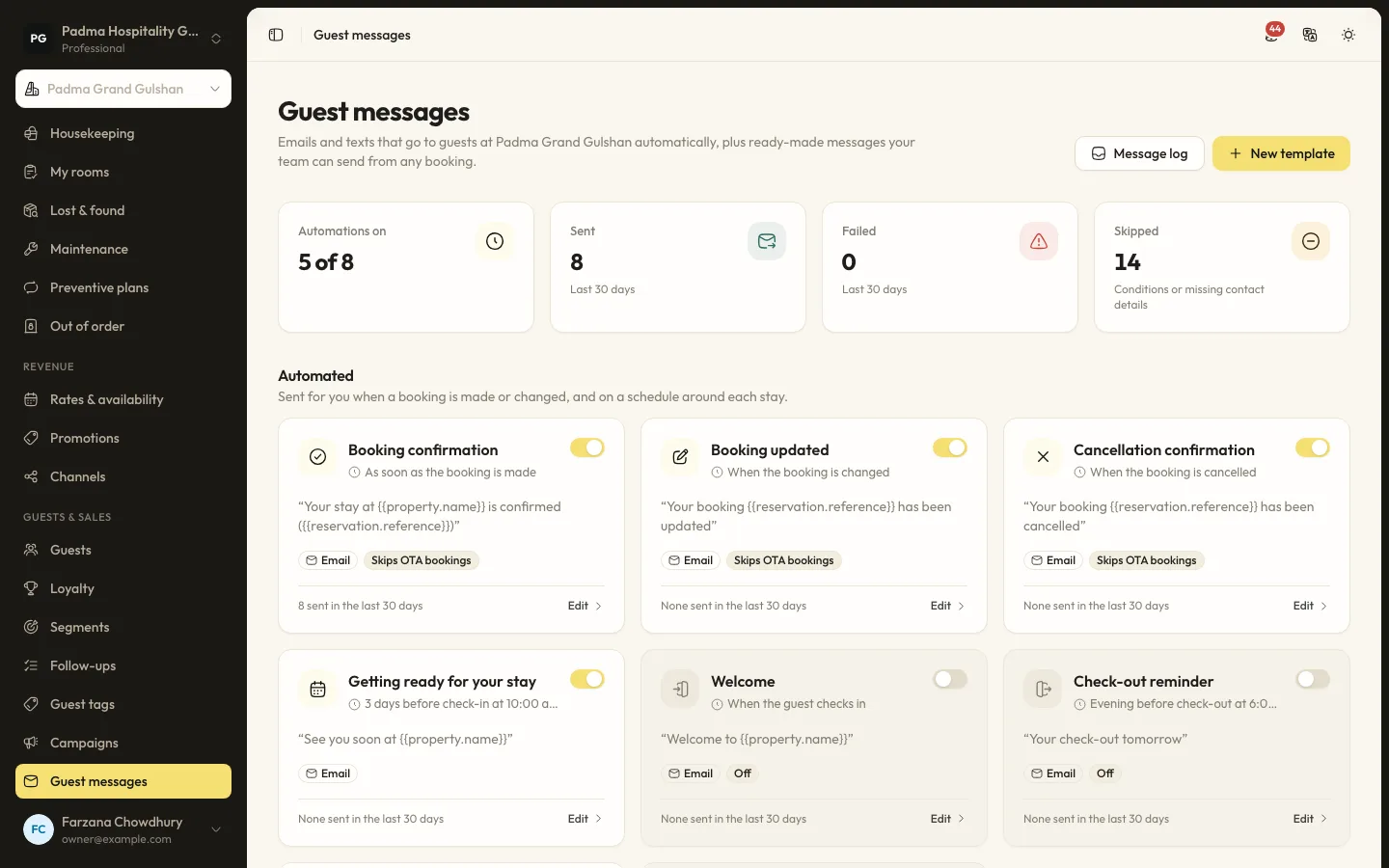
Automated guest messages and SMS
Send confirmations, pre-arrival notes, welcome and post-stay messages by email or SMS, with merge tags, conditions and a full log.
Guests and marketing8 min read
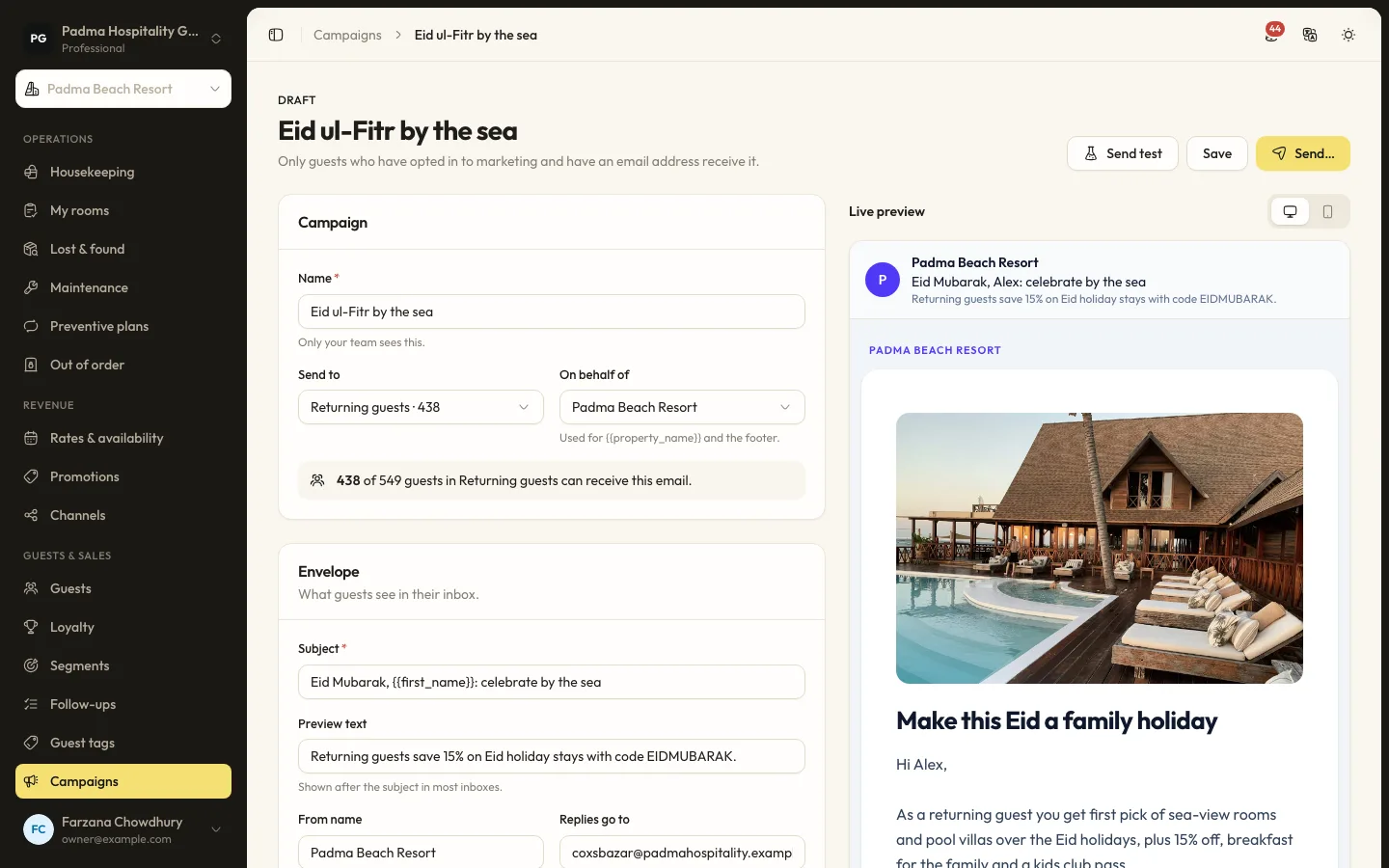
Guest segments and email campaigns
Group guests by stays, spend, tags and more, then send a tracked email campaign to those who opted in.
See it working with your own rooms.
A 30 minute call with someone who has run a front desk. Bring your questions and your room list.