Administration6 min read
Inviting your team and setting roles
Invite staff, choose role templates, limit people to the properties they work at and check the audit log.
Written for ownerHow access works
Two things decide what a person sees:
- Roles decide what they can do. Every organisation starts with role templates such as General manager, Front desk agent, Reservations agent, Night auditor, Revenue manager, Accountant, Housekeeping supervisor, Room attendant, Maintenance technician, Waiter / cashier, Spa therapist and Store keeper.
- Property access decides where they can do it: all properties, or only the ones you assign.
Your plan also applies. A permission does nothing if its module is not on your plan.
Invite someone
- Open Setup > Team and invite a new member with their name and email.
- Pick one or more roles. A person who covers reception and runs the night audit can have both Front desk agent and Night auditor.
- Choose all properties, or tick the properties they work at.
- Send the invitation. They set their own password from the email.
Team members with a login count against your plan's staff limit (5 on Starter, 50 on Professional). Staff profiles without a login, for example for rosters, do not.
Adjust a role
- Open Setup > Roles & permissions.
- Clone a template rather than editing it, and give the clone a clear name such as "Front desk with refunds".
- Tick or untick permissions in the matrix. Each module has its own group with a search and a select-all.
- Save and assign the new role from Setup > Team.
The owner role is locked and has full access. Organisation admins get everything except plan and billing.
Check who did what
Setup > Audit log records changes with who made them, when and from which IP address. Use it when a price changed and nobody remembers why.
Tips
- Ask every manager to turn on two-factor authentication from their account security page. Your organisation can also require it.
- Room attendants and technicians usually only need their own lists. Their templates are already narrow, so they see a short, simple menu on their phones.
- Review the team list when someone leaves and remove them the same day.
Common mistakes
- Sharing one login at the front desk. The audit log then cannot tell you who did what, and cashier shifts cannot be balanced per person.
- Giving refunds to everyone. Refunds and adjustments should stay with supervisors and accounts.
- Forgetting property access. A new hire at your Sylhet property should not see Dhaka bookings.
Still stuck?
Tell us which step you are on and what you see on screen. We will walk you through it.
Contact supportRelated guides
All guides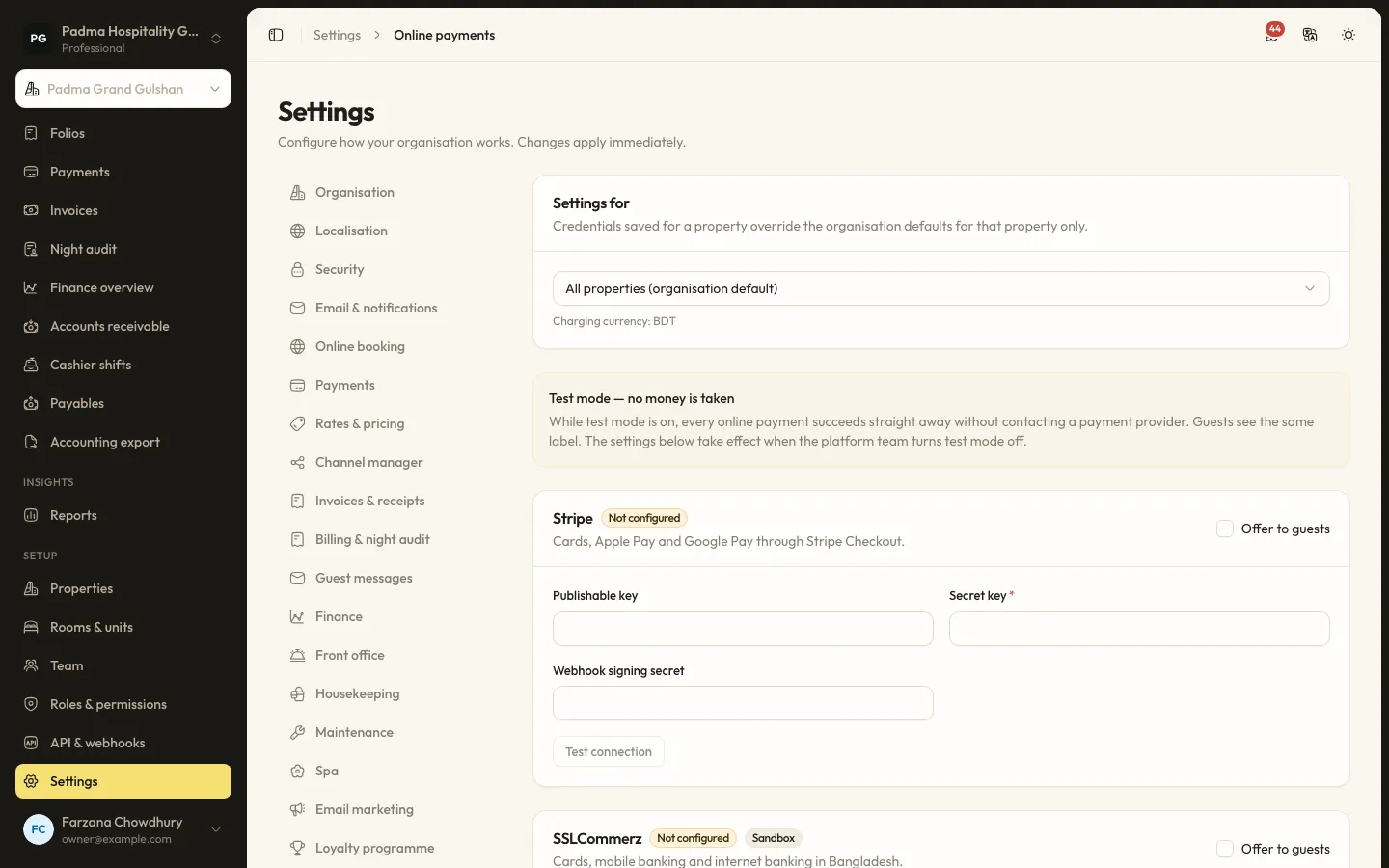
Administration9 min read
Setting up online payments
Take deposits and payment links through Stripe, SSLCommerz or bKash: what the platform must allow, where credentials go and how test mode works.
Guests and marketing7 min read
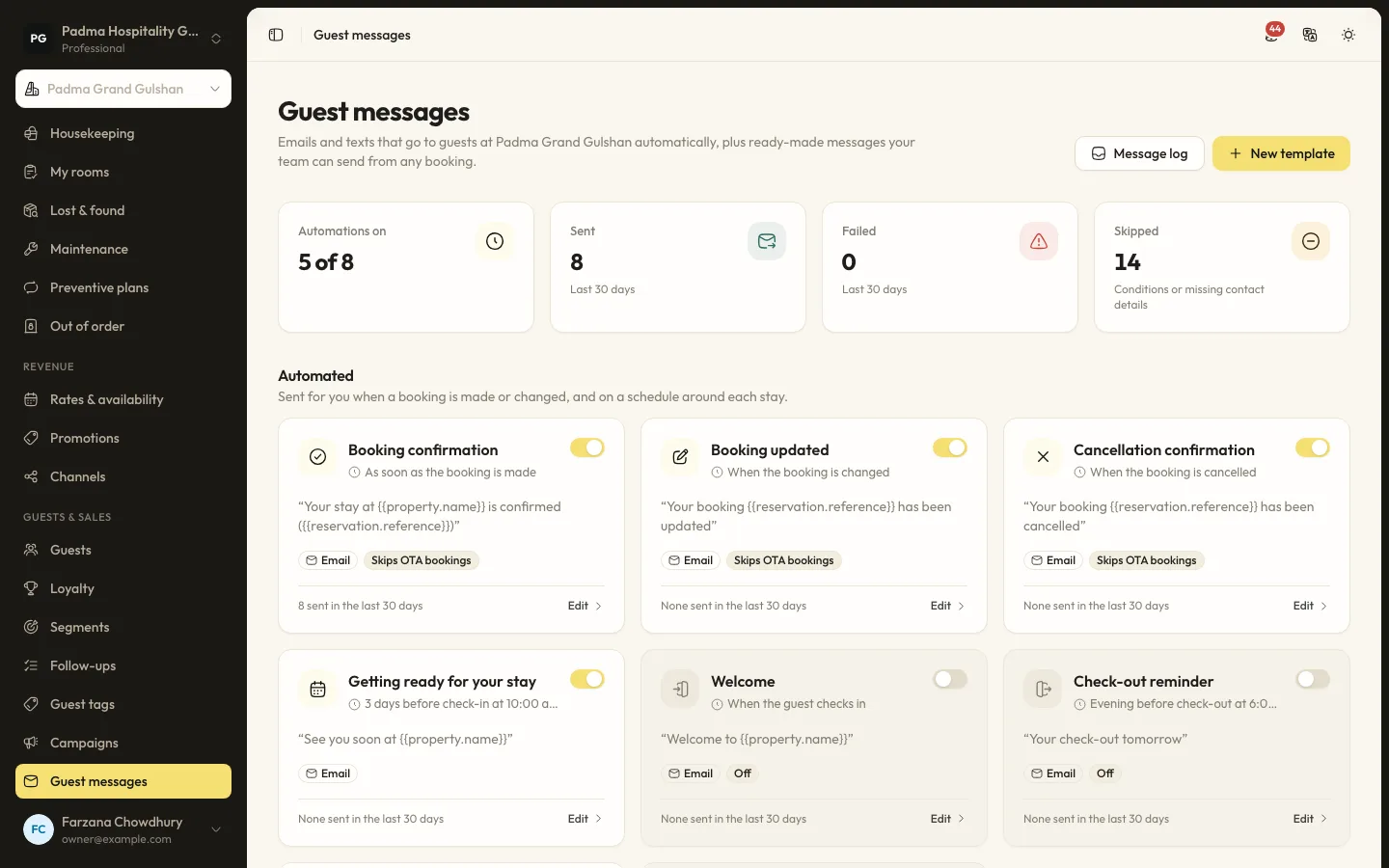
Automated guest messages and SMS
Send confirmations, pre-arrival notes, welcome and post-stay messages by email or SMS, with merge tags, conditions and a full log.
Guests and marketing8 min read
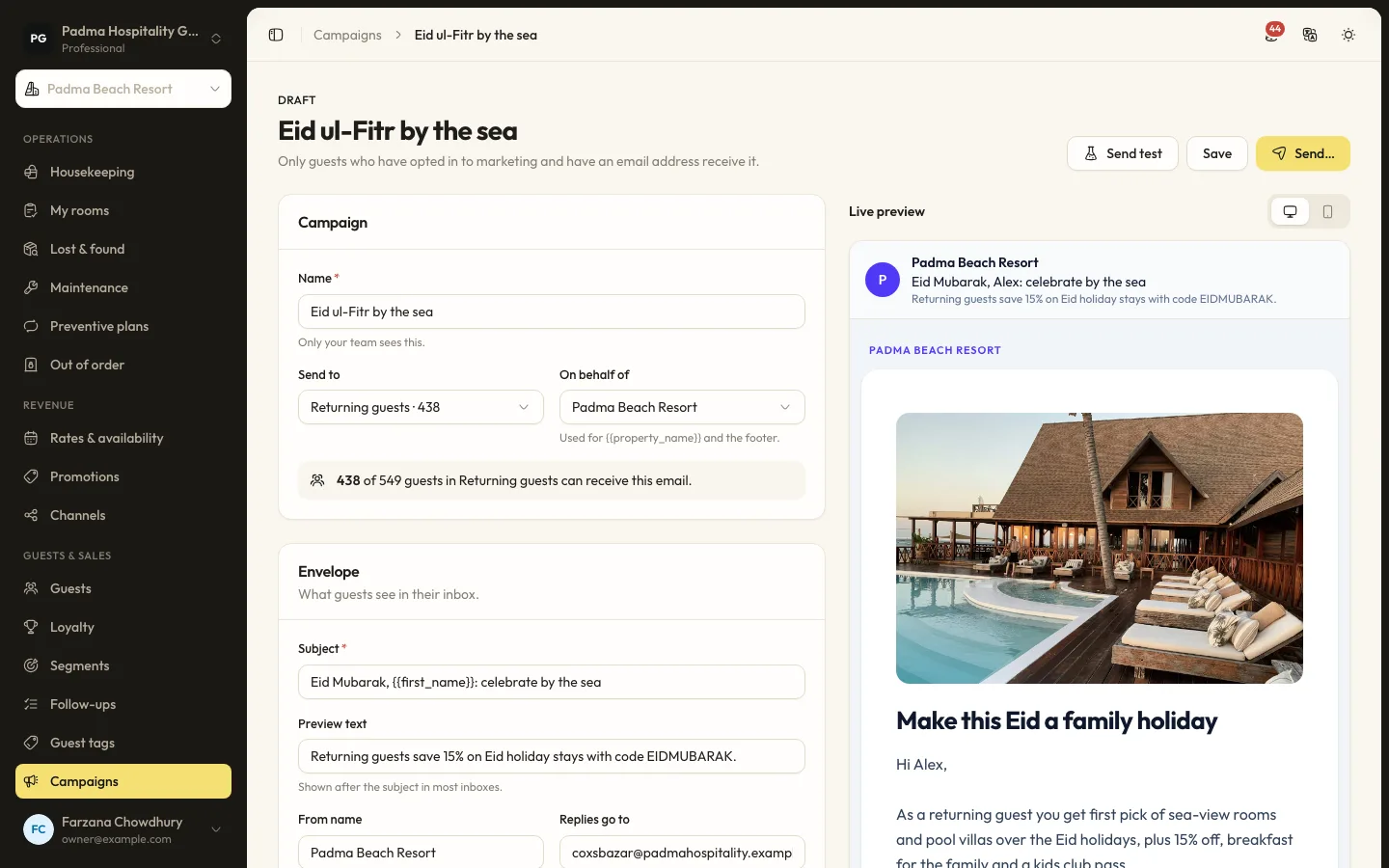
Guest segments and email campaigns
Group guests by stays, spend, tags and more, then send a tracked email campaign to those who opted in.
See it working with your own rooms.
A 30 minute call with someone who has run a front desk. Bring your questions and your room list.