Front office6 min read
Checking guests in and out
Work today's arrivals and departures from the front desk screen, assign ready rooms, record ID and settle the bill.
Written for front deskThe front desk screen
Front office > Front desk is home for the desk team: today's arrivals, departures and in-house guests, rooms in house and occupancy tonight, with one-click check-in and check-out. Use the date navigator to look ahead. The screen works on a phone or tablet too.
A booking moves through: confirmed, checked in, checked out. It can also be cancelled or marked as a no-show; both can be reinstated while the rooms are still free.
Check a guest in
- Find the guest in the arrivals list and choose Check in.
- If no room is assigned, RoomAnchor assigns a ready room when it can. Otherwise pick one. Only clean, ready rooms can be used.
- If your property requires ID, record the guest's identification. ID numbers are stored encrypted and shown masked.
- If your property requires payment before check-in, take it on the folio first.
- Confirm. Housekeeping sees the room as occupied.
Check-in only works on the arrival day.
Check a guest out
- Find the guest in departures and open the booking.
- Review the folio. Restaurant, spa and activity charges arrive on it by themselves when they were charged to the room.
- Take payment for the balance and print or email the invoice if the guest wants one.
- Choose Check out.
Check-out marks the room dirty and adds a departure clean to the housekeeping plan straight away. If the guest leaves early, the stay is ended on the day and the folio is adjusted to match.
Settings that shape the desk
Under Setup > Settings > Front office you will find: allow early check-in, allow late check-out, the overbooking allowance, require guest ID at check-in, require payment before check-in and the night audit time. Under Billing & night audit, "Require a zero balance at check-out" blocks check-out while money is owed; staff who can post adjustments can still check out with a balance.
Tips
- Walk-ins are taken from New booking with today's dates and the source set to walk-in.
- Look at "arrivals not ready" on the housekeeping board in the early afternoon so rooms are ready before guests arrive.
Common mistakes
- Checking in to a dirty room by moving the status by hand. Ask housekeeping to finish the room instead, so the board stays true.
- Checking out before taking payment. With the zero balance rule on, RoomAnchor stops you. Turning the rule off is rarely a good idea.
- Forgetting to check out departures. The night audit refuses to run while guests due out are still in house, unless you confirm.
Still stuck?
Tell us which step you are on and what you see on screen. We will walk you through it.
Contact supportRelated guides
All guides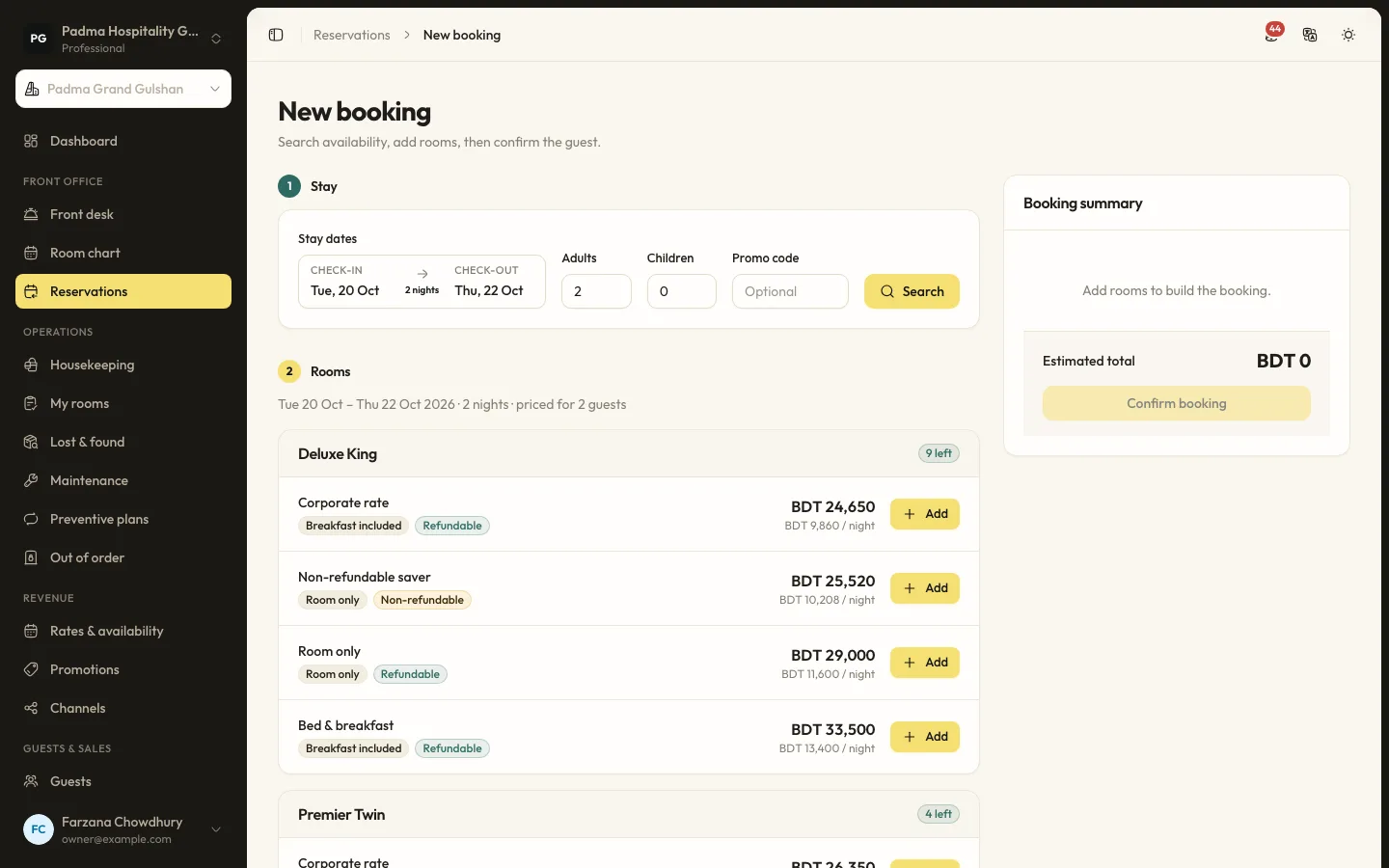
Front office6 min read
Taking a booking
Search availability, price every plan for the stay, add one or more rooms and confirm the booking for a new or returning guest.
Guests and marketing7 min read
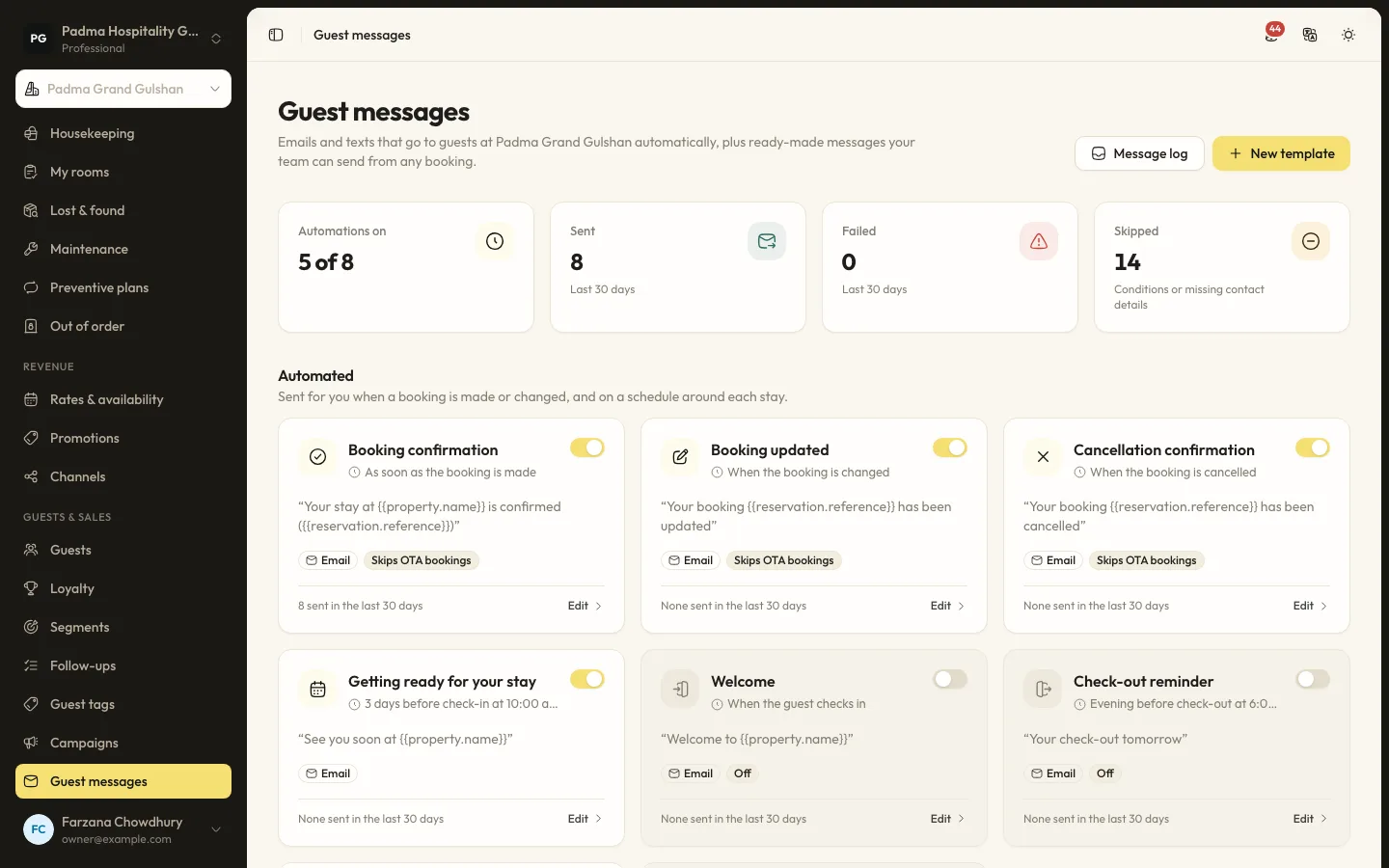
Automated guest messages and SMS
Send confirmations, pre-arrival notes, welcome and post-stay messages by email or SMS, with merge tags, conditions and a full log.
Guests and marketing8 min read
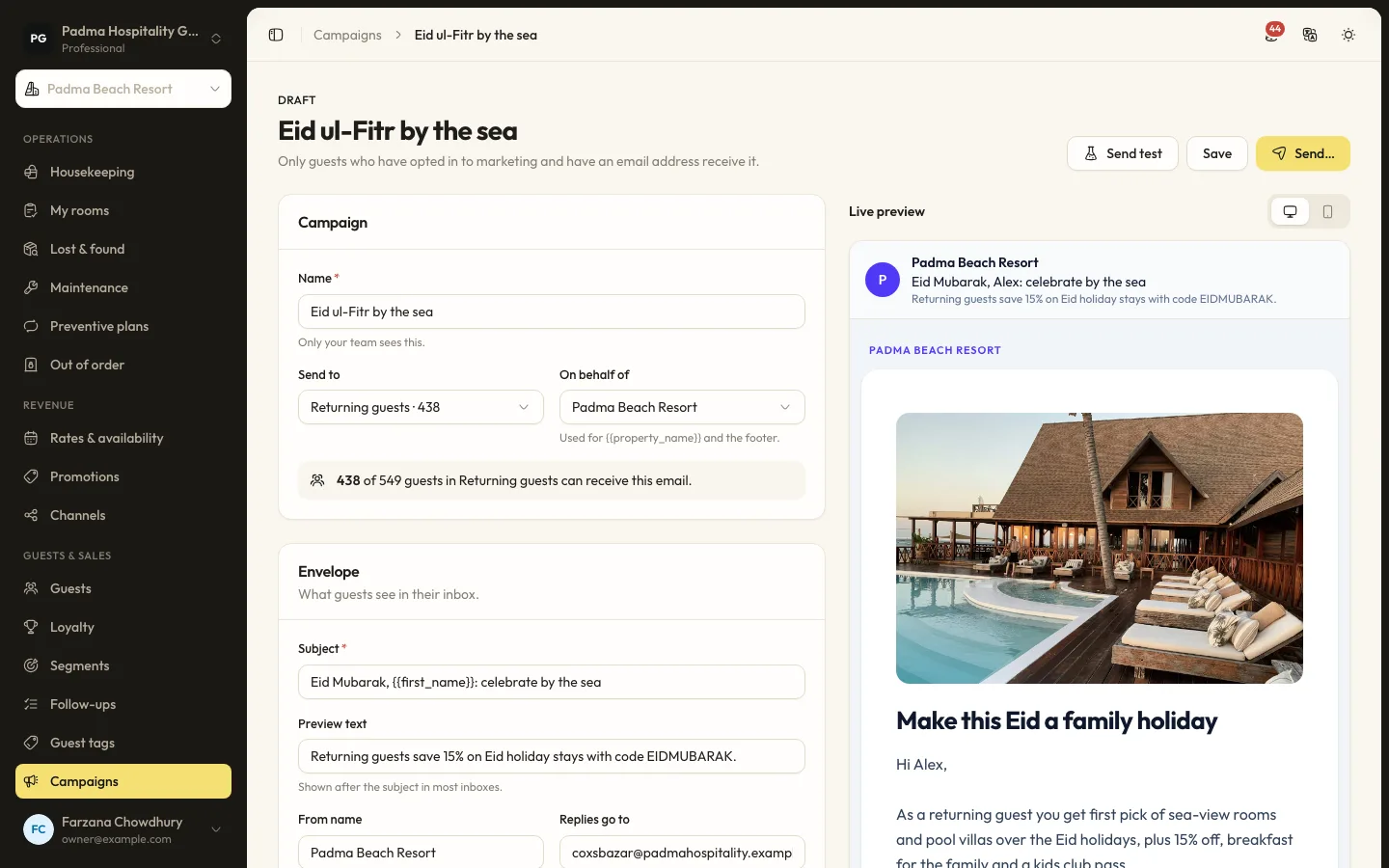
Guest segments and email campaigns
Group guests by stays, spend, tags and more, then send a tracked email campaign to those who opted in.
See it working with your own rooms.
A 30 minute call with someone who has run a front desk. Bring your questions and your room list.